
How to Scan NZ Free-to-Air Terrestrial Channels on ENGLAON Google TVUpdated 5 months ago
How to Scan NZ Free-to-Air Terrestrial Channels on ENGLAON Google TV
This guide is for New Zealand Free-to-Air Terrestrial TV only. If you are trying to scan NZ Free-to-Air Satellite TV, please READ THIS.
It is based on the ENGLAON X90 Google TV menu. If your TV is a different model, the menu layout may look slightly different, but the working principle is the same.
Before You Start
Before scanning channels, please check the following:
| Check | What to Confirm |
|---|---|
| Signal type | You are using a UHF aerial / antenna, not a satellite dish |
| Cable connection | The antenna cable is firmly connected to the TV |
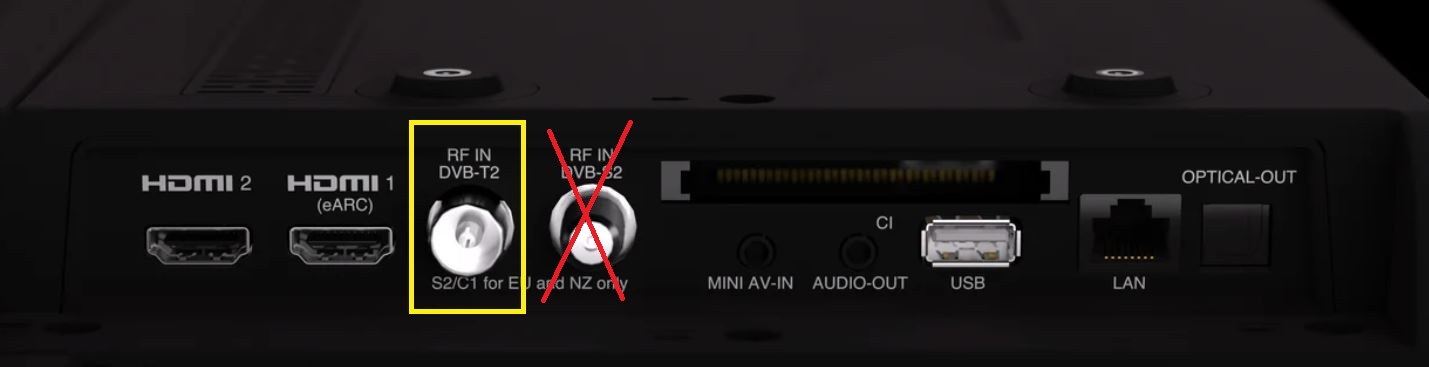
Step-by-Step Instructions
From the Google TV home screen:
- Press the Settings button on your remote and select All Settings.
- Go to Channels & Inputs.
- Select Channels.
- Select Channel Scan.
- Select Country / Region and choose New Zealand.
- Under Tuner Mode, select Antenna.
Do not select Satellite. - Select Antenna Auto Scan.
- Wait for the scan to finish.
- Save the channels if prompted.
Your TV will now scan for available New Zealand terrestrial Free-to-Air channels.
If No Channels Are Found
Please check the following:
| Check | What to Do |
|---|---|
| Signal type | Make sure you are using a UHF aerial / antenna, not a satellite dish |
| Region | Make sure New Zealand is selected |
| Tuner mode | Make sure Antenna is selected |
| Cable connection | Check the antenna cable is connected firmly to the TV |
| Signal source | Try another wall socket or check whether another TV can receive channels from the same aerial point |
Need Help?
If you still cannot scan any channels, please contact ENGLAON Support with:
- Your TV model number
- Your location in New Zealand
- A photo of the Channel Scan screen
- A photo of the antenna cable connection
- Whether another TV can receive channels from the same aerial socket