
Why Google TV Says “This App Is Not Available in Your Country”Updated 5 months ago
Why Google TV Says “This App Is Not Available in Your Country”
“This item is not available in your country.”
when trying to download apps such as:
• 7plus 、 9Now ,SBS On Demand (Australia)
• Foxtel Now (Australia)
• Sky Sport (New Zealand)
This may occur even if you are located in Australia or New Zealand.
This guide explains why it happens and how to fix it.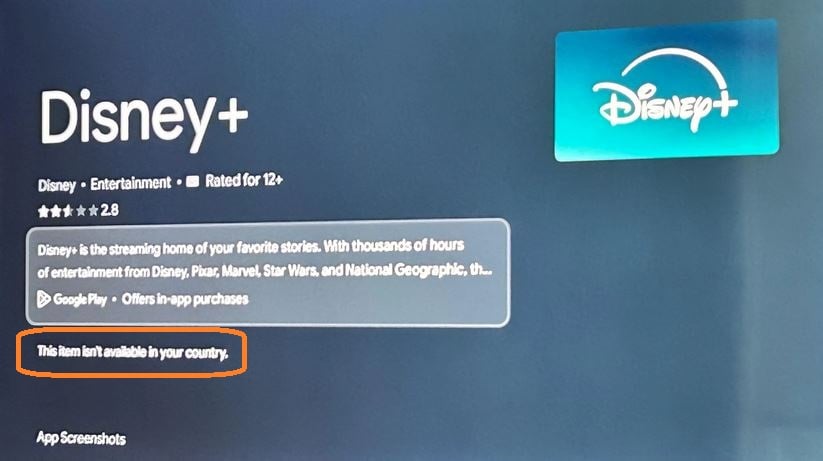
Why This Happens
Some streaming apps may not appear in the Play Store due to regional restrictions and device settings.
The most common reasons include:
1. Google Play Account Region
Apps are filtered by the country linked to your Google Play account, not just your physical location.If your Google account is set to another country (for example US or UK), Australian apps may not appear.
This can happen when:
• the Google account was created overseas
• an old payment profile is linked to another country
• the account region does not match the device region
2. Device Firmware Region
Some TVs are configured with regional firmware.
If the device firmware is set for another market (such as US or Europe), the Play Store may not display Australian or New Zealand apps, even if:
• your Google account is set to Australia
• your internet connection is in Australia
3. VPN or Network Location
Streaming apps may check the IP location of your internet connection.
If a VPN, Smart DNS, or proxy service is detected, certain apps may not appear in the Play Store.
4. Streaming Provider Geo-Restrictions
Many streaming services restrict their apps to specific countries due to broadcast licensing agreements. Apps such as 7plus 、 9Now may verify IP location ,account region and device region before allowing installation or access.
How to Fix it
In most cases, the issue is caused by Google account region mismatch.
Try the following steps:
Step 1 – Check Google Payment Profile
Visit: https://pay.google.com
Confirm Country / Region = Australia ( for example)
If it is set to another country, update the payment profile.
Step 2 – Restart the Google Play Store
On your TV:Settings → About →Resetting your TV
Then select the right the TV country.
Step 3 – Re-Login to Your Google Account
Remove your Google account from the TV
Restart the TV
Add the Google account again
This forces the Play Store to refresh its region settings.
Full Troubleshooting Checklist
If the problem continues, check the following:
Disable VPN or Smart DNS
Ensure:
• VPN is turned OFF
• Router VPN services are disabled
• DNS settings are Automatic
Check Network Location
Make sure your internet connection is located in:
• Australia
• New Zealand
If you recently travelled or changed networks, your IP location may not match.
Update the TV System
Go to:
Settings → System → About → System Update
Install any available updates.
Some apps only appear on newer Google TV versions.
Refresh the Play Store
Try clearing Play Store data:
Settings → Apps → Google Play Store
Select:
• Clear Cache
• Restart TV