
How to Turn On / Off Subtitles on Your ENGLAON TVUpdated a month ago
How to turn subtitles on or off
These instructions apply to the ENGLAON 12V TV models listed below. Choose the option that matches the customer's TV model.
Option 1: TVs with a TITLE, SUBT, or Subtitle button
Use this option for the following models:
- LED24M30
- LED24M40
- LED22M60
- LED22X80
- LED24M80
- LED24X80
- LED27M80
- LED32M80
- LED25X90
- LED24X70
- LED32X70
- LED40X70
These TVs have a TITLE, SUBT, or Subtitle button on the remote control.
- Press the SUBT, TITLE, or Subtitle button once.
- When the subtitles menu appears, select Off, Basic, or Hearing Impaired.
- Repeat the same steps whenever you want to change or deactivate subtitles.
Option 2: TVs that use the three-line Menu button
Use this option for the following models:
- LED24X70PLUS
- LED32X70PLUS
- LED27X90PRO
- LED32X90PRO
- LED24X90PLUS
- LED32X90PLUS
- LED40X90PLUS
- LED27X90
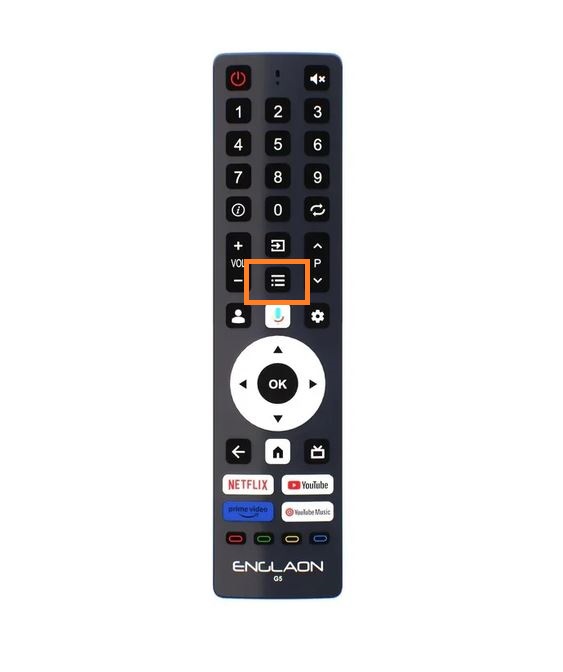
Please follow the steps below to turn off subtitles/captions on Free-to-Air TV:
- Switch to a Free-to-Air TV channel first.
- Press the Menu button on the remote control.
- Select All Settings → Input → Live TV.
- Press the button with three horizontal lines, as highlighted in the image above.
- Select Subtitles, then set Subtitles to Off.
To turn subtitles back on, repeat the steps above and select On.
If your TV model is not listed, or the menu options are different, please contact our Customer Support team and provide your exact TV model number and a photo of the remote control so we can provide the correct instructions.